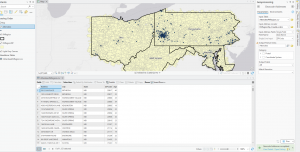
Parks Week 5

Chapter 4:

In the start of chapter 4, you have to make your own project. There were a few points in this process that confused me. This chapter also discusses how to make and import feature classes and tables. It also showed you how to modify tables to ensure they only had the necessary information. We used attribute queries to narrow crimes down to a specific subset. We used this subset to narrow down a specific robbery to identify John Bond. I found this tutorial really interesting because it felt like I could see how you could apply these features to real life. This chapter describes how to join data together into one table. In this case, we joined neighborhoods and crime. We also joined serious crimes with hierarchy. In this chapter we also made central points.

Chapter 5:

In chapter 5, we focused more on spatial data. In the beginning of the chapter latitude and longitude, as well as coordinates were discussed. Then, we compared different map projections, including both world and US projections. It surprised me how many different map projections there are, I had previously thought there were only a handful of them. I got to see different kinds of warping between the different projections. The chapter also discussed how to set coordinate systems for layers. This chapter also discussed downloading shapefiles. Shapefiles contain spatial data that can be used by ArcGIS. We also downloaded data from the internet, like census data and bike use data. The data had to be opened in Excel and cleaned up so that it could be used more effectively. The chapter also showed how to get data from the living atlas.

Chapter 6:

Chapter 6 was focused on several geoprocessing tools available in GIS. The first tool the chapter covered was pairwise dissolve, which was used to combine block groups into a neighborhood. Then, extracting and clipping features was converted. Extracting was used to create a study area using a table and clipping was used to cut off parts of a feature, like with streets. Next, we had to merge the various water features into one feature, NYC water. The chapter then covered appending to add features to existing classes. Then, the chapter discussed using the pairwise intersect tool to summarize streets for fire companies. Using the union tool to combine polygon layers into one was also described. Finally, the chapter covered using the tabulate intersection tool to understand amounts relative to area. This chapter covered a lot of tools, which were a bit difficult to keep track of. I see myself needing to refer back to this chapter when I need to use these tools.

Parks Week 4

Chapter 1:

In chapter 1 many of the fundamental topics of operating GIS were discussed. It was a bit difficult for me to orient myself in the program at first with all of the different tabs and panels. This chapter covered selecting content in the beginning. Selecting content is important when you want information about a subset of your data. Attribute tables and summary statistics were also covered. Attribute tables show you all of the different columns of data available. You can calculate summary statistics about the data to see patterns. This chapter discussed display factors as well, like choosing and editing symbols using symbology and making a layer with legends. At the end of the chapter, we worked with a 3D map. I thought that seeing the 3D map was really interesting.

Chapter 2:

In chapter 2, we designed thematic maps. Thematic maps aim to solve or investigate a problem. We worked with symbology a bit more by color layers, like water and neighborhoods, and using unique value symbols. Making labels that pop-up at different levels of zoom were also covered. This chapter also covered using definition queries to show only a subset of features. Graduated colors and symbols were also used in this chapter. The shades of colors and size of symbols change with associated numeric values. I have found getting to design symbols quite enjoyable. In this chapter we also learned about making dot density maps and choosing the most effective dot sizes and values.

Chapter 3:

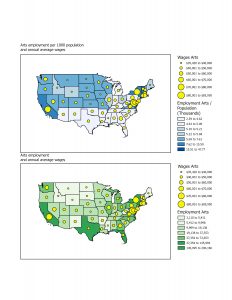
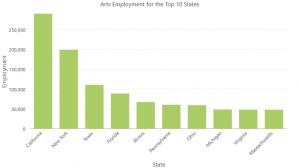
In chapter 3, we learned how to make layouts and some aspects of using ArcGIS online. We had to make a layout for the two arts employment maps along with their legends. Then, we had to post the map on ArcGIS Online. Along with the map we had to make and post a storymap file (https://storymaps.arcgis.com/stories/8e25962b5e634839a015c069b772c460) and a storymap briefing. It was kind of fun making the story file. It wasn’t an aspect of GIS I was expecting, so it was really interesting.

Week 6 Hutto

Chapter 7

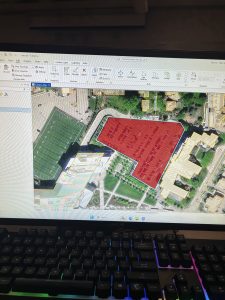
Chapter seven is interesting, as it teaches us more about the editing tools within GIS, more specifically, how to create and edit the shapes of various polygons, as well as how to delete polygons and split one large polygon into two separate polygons. In this chapter, we digitized a parking lot using the Create Feature Class tool, which also allowed us to add and digitize the location of different bus stations as well. For the bus station digitization part of the chapter, I had trouble finding the exact location of the bus symbol to represent each bus stop; I ended up moving on after searching the ArcGIS Online catalog pane for the symbol with no success.


Chapter 8

Chapter eight teaches us how to geocode data using zip codes and translating it into points on a map. We used the create locator tool in ArcGIS to build a zip code locator. We also used the geocode address tool inside of ArcGIS to match the responses using zip codes and the zip code locator we created.

Chapter 9

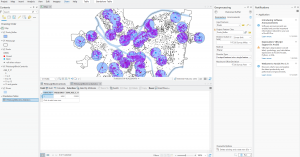
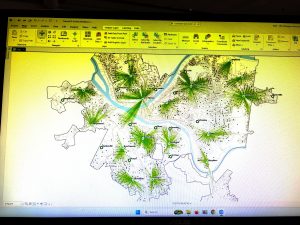
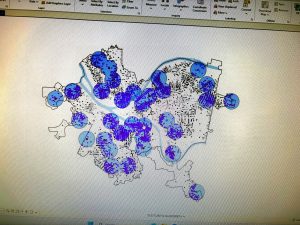
In chapter nine, we use the multiple ring buffer tool to measure the distance between swimming pools in Pittsburgh and how far youth live from the swimming pools. I found this chapter easier than others to complete; however, I still walked away confused about what some elements within the map is supposed to represent and how can the multiple ring buffer tool be applied to other mapping projects.


Robinson Week 6

Chapter 7:

This chapter focuses on digitization using multiple GIS features. The first section of this chapter details editing polygon features. Using the select tool is pretty self-explanatory: you are just selecting features. Then the user must click the move button to move and rotate the buildings as such. They can also add or move vertex points (an ordered pair that defines a polygon feature). The part I struggled with most was splitting features; it kept giving me error messages. Eventually, I figured it out and moved on to the next section. The next part had us delete and create polygon features. This section of the chapter was straightforward and had the most fun with it.  Created some of my own polygon features just for the pure enjoyment of it. The following section had us use cartography tools. We used the Smooth tool, which improves the appearance of polygons so they’re more rounded and are less boxy. You could say it was aesthetically pleasing to the eye.  The final thing this chapter goes over is how to transform features. It covers georeferencing to help us locate places in a specific area and transformation tools to move buildings to a more precise location. I found this part of the section a bit challenging because, for some reason, even when performing the transformation. The building wouldn’t move to the right spot. It would literally barely move at. I traced back my steps and found out I got the target points mixed up somehow. Regardless, overall I thought this chapter was interesting. As the chapter goes on, we get more hands-on experience and learn even more about what GIS could offer. Just a couple of weeks ago, I barely heard of this program, and now I can do so much more with it.
Chapter 8:

The previous chapter discussed digitizing polygon features, spatially adjusting them, and working with CAD (computer-aided design; files you can open and read without converting them). drawings. Chapter 8 goes into detail on geocoding, covering the overall process, geocoding with ZIP codes, and finally geocoding addresses using streets. The first section had us use ZIP codes with geocoding data. We also used a new tool called Create Locator. This utility helps us look up a specific location. Then we used the Geocode Addresses tool to convert a table of street addresses into features on a map. Another new thing I learned in this chapter is how to rematch data by zip code. This lets the user correct and review any addresses that weren’t matched before. After that, we were shown how to symbolize using another new tool. Called collect events, which takes data and puts it into a new feature class. This tool counts the ZIP codes and applies graduated symbols to them. The other half of the chapter has the user geocoding street addresses. The Create Locator tool appears again, but instead of using ZIP codes, it uses streets. Later, we use the same tool again, but with street addresses. Once that is done, then we move on to selecting minimum candidate and matching scores. This part was really easy, and it didn’t require much menu jumping. Anyone (in my opinion) could do this part in a short amount of time. The last thing this section has us do is produce the final geocoding results. The definition query tab helps define the results even more. Chapter 8 showed us the importance of geocoding. It also included some explanations here and there. Not only that, but the activity itself helped us along the way to better understand the processes behind it.
Chapter 9:

Chapter 9 discussed geocoding processes and geocoding with ZIP codes and street addresses while working on CAD designs. This chapter focuses on spatial analysis. Showing us how to create single and multiple ring buffers for proximity analysis. It uses gravity models for service areas to detect distance and perform cluster analysis. The first section of this chapter has us create buffers. The use of buffers hasn’t been mentioned since the Mitchell book (I think). This is done through the Pairwise Buffer tool, creating a “zone” around the radius of each feature. To add multiple ring (M.R.) buffer zones, we use the same tool that has the same name. Then, a spatial overlay is used to combine all the attributes of the multi-ring buffer we had just created. The next section has us create M.R. service areas for a gravity model (a prediction model showing how things move between two places). As done previously, the M.R.  function is used with a spatial join. Then we calculate the statistics of pools in service areas. Then a scatter plot is created to best represent that information. The section after uses the network analysis tool to locate facilities. Starting by locating the attendance of some pools. This is done through location-allocation, which shows the best locations and connects facilities to the people who need them. The following result would look like a bunch of fireworks going off in different parts of the map. (Though I’ve seen others call this more like a web.) After that, we perform a data cluster analysis. This is done with the tool called Multivariate Clustering, which groups map features into clusters based on numeric attributes. This chapter has shown me that imagery is not the only way to help users meet their needs. Logical methods, along with certain data, can go along way a really long way.
Chapter 10:

Chapter 9 had us go over single and multiple buffer zones, creating service areas of facilities, locating those said facilities, and performing cluster analysis. The following chapter is more complex but very intriguing and useful. Focusing on using raster GIS, which uses continuous layers like precipitation and topography to display data. We start by reviewing the properties of a raster dataset. Next, we import a new dataset using a new tool called Raster to Other Format. This converts one or more raster datasets into a different file format altogether. We set the environment for analysis and then extract the land use file with another new tool called Extract by Mask. This cuts the datasets down to a specific boundary. One thing that really caught my interest in this chapter was setting up elevation using Hillside. After using section hillside, we lead into Chapter two having the user create a kernel density map, showing a smooth raster surface that displays density within an area. Setting this up required using multiple tools back to back. Kernel density, contour list (creates a class of contour values from a raster surface), feature to polygon (creates a class from line or polygon features), and summarize within (calculates various things for features inside polygons). The last section of this chapter was the most exciting part (for me), and it deals with model building. The model-building layout reminds me of a Python flowchart. When I first saw it, that’s what came to mind. The buildup and the result of that buildup reminded me so much of coding in general. If I had to say what it was like, it would be similar tp building Legos. It can be easy and frustrating at times, but the results are worth it. Just like the map creation of this section. Putting me in straight awe of what I can create.
Chapter 11:

The final chapter within our GIS journey has us handling 3d once again. The use of 3d hasn’t really been mentioned in a couple of chapters. Nonetheless, this chapter has been enjoyable overall, with so many features to explore.  The very first section has us exploring the global scene. Learning how to apply map shading and use certain keys on a keyboard for viewing.  Section 2 had us create a local scene and a TIN surface (triangulated irregular networks). The process was easy until I got to the Draw Using function, using symbology to color a surface. Once I resolved that issue, I moved on to creating z-enabled features. Where z is used for height in a 3d setting, along with length and width (x and y, respectively). Funny enough, I thought GIS never has selectable 3D assets. Spent a couple of minutes looking around to see what other features the program has. After that, we created features and a line of sight using lidar. Like before, I ran into issues and was a bit confused about the setup. One thing I found cool was creating a raster DTM and creating random points for buildings. It had me eyeing the map for a good minute. The bridge part was another thing I found really cool.  Once that section was over, we worked with 3d features. This required the user to set up building floors and tower heights. The second-to-last section went over procedure rules and multipatch models (an outer shell of a model). The very last section of the book, though, caught me off guard. It had us create animations within GIS, which is something I originally thought the program didn’t do. It was quite surprising, to be honest, and easy to use. Though trying to export an animation from here took forever.
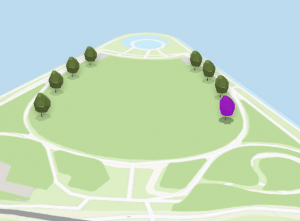
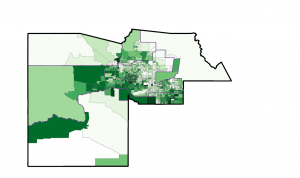
Bruner Week 6

Chapter 7

Chapter 7 had a lot of work to do with the “manual” parts of the program. We still used system tools to do this, but the work to make the features look the way we wanted was done my manually moving them around and creating them. We practiced smoothing shapes, making new features using the satellite map as a template, and how to adjust existing features to better fit a map.

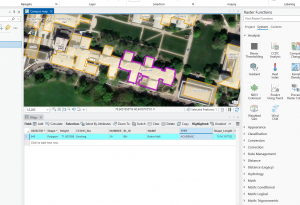
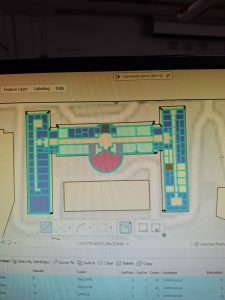
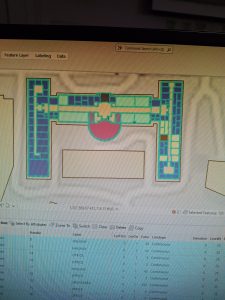
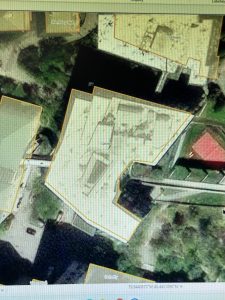
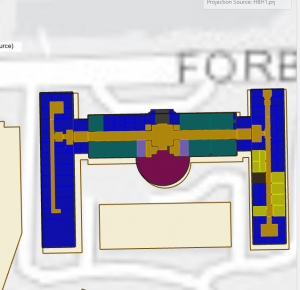
One of the activities in this chapter did not work well for me. We had to move the layout layer of a building to match the layer of the outline, and the tool used to move the corners to match up was very ineffective. This is the feature before and after me moving it into place for a second time.

Chapter 8

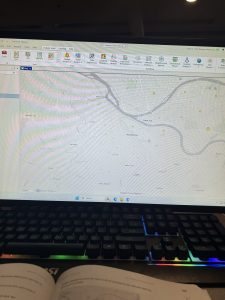
Chapter 8 explored geocoding and explained how important getting a good score in accuracy is when presenting information. It demonstrated that perfecting data or looking at a more reliable aspect of the data, like zip code, made this score higher. I completely forgot to take pictures of this chapter somehow, but I pretty promise I did it.
Chapter 9

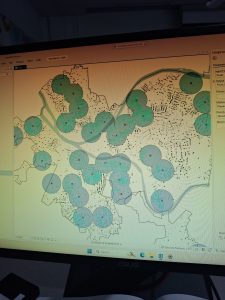
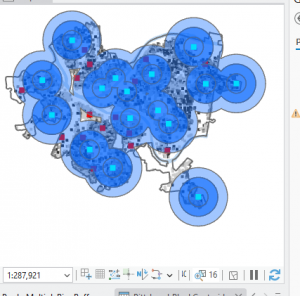
Chapter 9 demonstrated different ways of doing spacial analysis. One thing that I really could not get to work properly was the buffers. The first time we did them, the features in the first buffer would select, but when I tried to select the bigger rings of buffer, they would not select. The second time, when we did not layered rings, none of the features would select, only the middle of the buffer. That example is shown here (after the smaller rings when it did work):
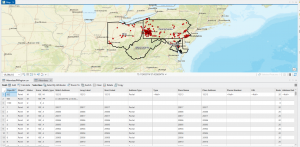
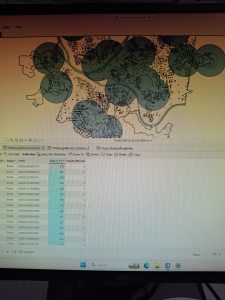
Another specific thing we did in chapter 9 was analyze data with the summarize tool and make a visual graph with it. This also did not work correctly for me. When I clicked on the feature the book asked for, it showed up as a different feature in the code, and I went to fix it, and it gave me an error. I decided that maybe the code it made up was just what it had to be, but that gave me all 0s as values. A peer checked this over and they followed the same process I did, but they did not get weird code or a 0 result. That is shown below as well. My graph was very not right as a result of this, but I did make it just to learn how.
McMahon week 6

Chapter 7

In this chapter, I thought it was interesting that there was a tool to “smooth” tool to make the edges around an area smoother. Overall I thought this chapter was straight forward and I got to practice more with the attribute tables and exploring new tools. 7-4 was a bit tricky because it wasn’t very clear on where I needed to go, but I ended up getting help and figured out how to rotate the image.


Chapter 8

The main focuses were about zip code and addresses and I during both 8-1 and 8-2, the ending steps got a bit vague and harder to understand. I overall think that I missed up my maps for this chapter but I thought it was helpful to get some practice with zip codes and addresses.

Chapter 9

I thought this chapter was interesting because of the use of the Spatial Join tool. After I figured out how to work it, it was interesting to see the what could be changed after using this tool. In  9-3 I got a little lost towards the end so again I think I messed up my map. I thought it was cool to use the Location Allocation tool and change the input and outputs. Overall I think this chapter introduced some new tools and allowed me to practice with them throughout the chapter.

Week 7 Beard

Week 7:

Ch. 7:

In this chapter we learned how to make our own plots by taking points around the area and building a surrounding to fill in. This can be important if we wanted to shade in certain areas that have a certain important meaning. I though that this chapter was pretty easy compared to ones in the past. It was cool to make our own plots as well as adjust areas around buildings to make everything seem more percise.

Ch. 8:

This chapter we learned how to geocode using different areas, streets, and zip codes. This can give you precise information based on smaller topics like zipcode in areas that we might not think about. It helps give you more precise information as well. We also learned how to map these points as wel.

Ch. 9:

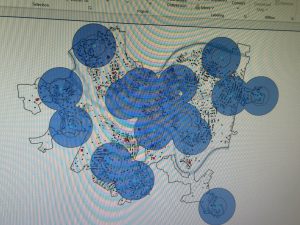
In this chapter we learned how to do spatial analysis by creating different rings like we see in the first area, and a bunch of other techniques. we were able to create buffer rings that help showcase where something is in proximity to other places. This can be very helpful to see how many places are in an area compared to others like wealthy areas vs. poor areas.

Montana week 6

Week 6

Chapter 7

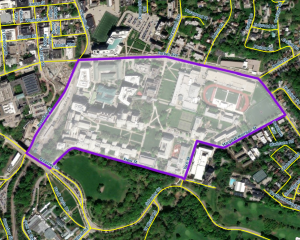
This chapter puts to practice how we draw polygons and define areas using the GIS. Most of our work for this chapter was spent defining areas using polygons and manipulating those polygons to fit the buildings present on the CMU campus. I think it is interesting that they used Carnegie Mellon because I feel like I remember reading something about them having some sort of tie to GIS work.

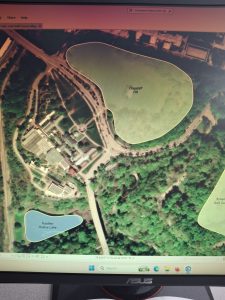
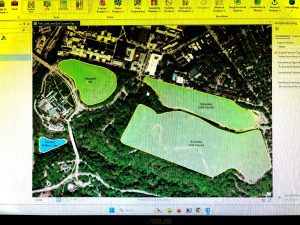
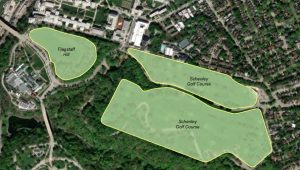
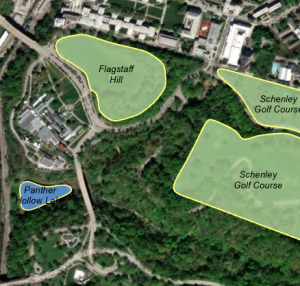
One of the most fun parts of this chapter and consequently probably the easiest was smoothing polygons to fit real vectors. We did this for several golf course greens and a small lake.

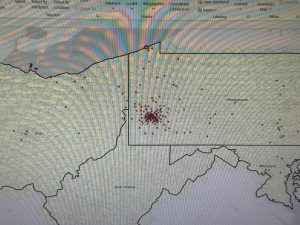
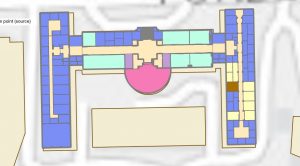
This second picture is the image of a CAD drawing I input into the GIS. It took me forever to find it and I was worried I had messed something up but then I zoomed to the layer and found it in Cincinnati.


Chapter 8

Chapter 8 put focus on geocoding which is the geographic signature attributed to different points. We first worked to correct some database values that needed some correcting in a registry of attendee addresses. We also did some fairly basic display changes. In the second part we worked on matching address fields with the address we are given to the correct address table. We also checked for the accuracy of each of the matches and the overall successful match count.

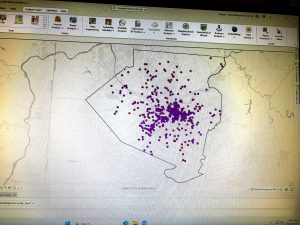
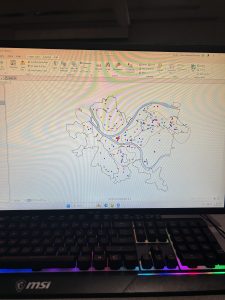
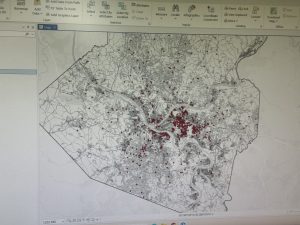
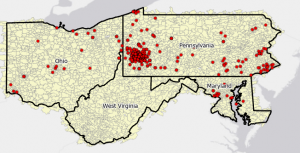
Above is a map of all of the addresses in the attendee address database. 

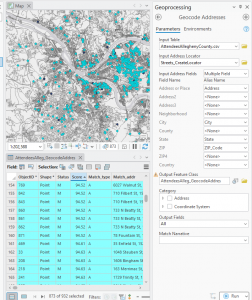
After matching the data in the attribute table we ran a select by attribute based off of the accuracy score of the address matching(score 90 or above). Those fields were highlighted and then the map updated to show the addresses we had a match on vs. the ones we don’t have a match for.


Chapter 9


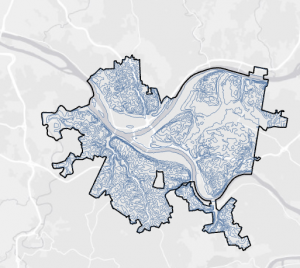
Chapter 9 focused on spatial analysis and drawing boundaries around distance to points. This chapter’s work was focused in the city of Pittsburgh where the analysis was on pool availability for the youth and in the last module crime. I found this module to be pretty challenging at times but mostly that was because I was not reading the directions thoroughly and looking for the right buttons. The first two modules introduced buffer rings to show locations around a point and how to add multiple of these buffers around one single point.

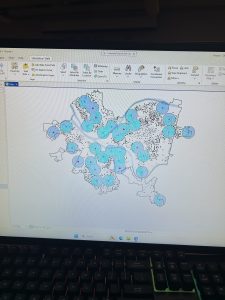
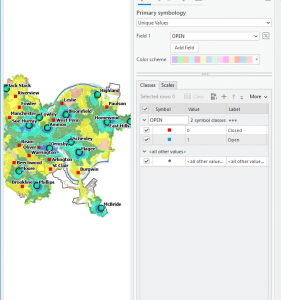
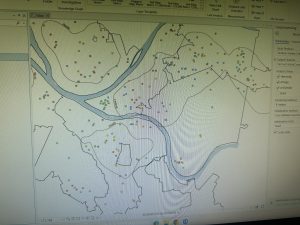
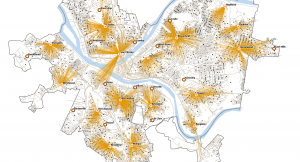
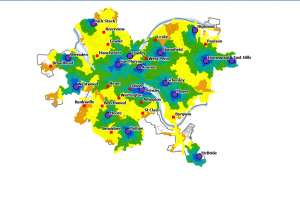
We then created a map called a gravity model which instead of showing distance to a point as equidistant use more complex real world logic to discover the distance to the nearest pool(pictured below)

We also created a spider plot graph to show distances without a set color interval. Each of the lines connects from a pool to a block centroid. Finally we organized crime data to come to spatial conclusions about different demographic groups and their crime impacts.


Week 6 Jefferson

Chap 7 focuses on editing, creating, and deleting polygon features. I learned how to make and digitize point features, use cartography tools to smooth features, and work with CAD drawings. I learned how to move and edit the polygons, and I found this to be an interesting but very useful feature. 

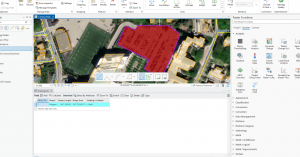
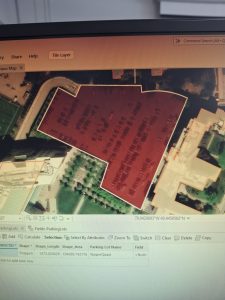
I couldn’t figure out how to make the red that symbolized the parking lot appear. And I also didn’t know how to make the transportation icons pop up. 

7.4 Under HBH1 polygon, I can’t get the colors to show up on the map. 


Chap 8 focuses on learning about the geocoding process, using geocode for ZIP codes and using geocode for addresses using streets. 

8.1 I don’t see an option for Locators. I could not find a “Pick from Map” button, so I wasn’t able to add a point in the geocoding process. When I tried to symbolize using the Collect Events tool, it kept saying, “Collect Events failed.”

Chap 9 focuses on using buffers for proximity analysis, using multiple ring buffers, creating service areas of facilities to estimate a gravity model of demand versus distance from the nearest facility and learning how to perform cluster analysis to explore multidimensional data. 

  1. I was unable to summarize when right-clicking “AGE_5_17”. 

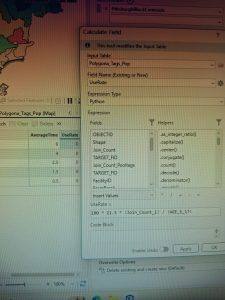
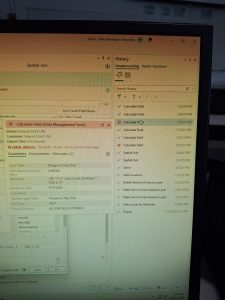
 In tutorial 9.3, you learned how to create a multiple ring service area for calibrating a gravity model. During 9.3, when I right-clicked on “Service Area,” there was no option for “Input Data,” so I was not able to import Facilities and apply the settings asked for in the textbook. I also could not find an option for travel settings, so I skipped that step. Then my “UseRate” tool was not calculating, so I wasn’t able to make the scatterplot. 

9.4 Was confusing for me, mainly because of the “your turn”. I was not able to make it look like the pictures it had as examples. 

Sisler Week 6

Chapter 7- Digitizing 

The learning goals of this chapter include creating, editing, and deleting polygon features; creating and digitizing point features; using cartography tools to smooth features; working with CAD drawings; and spatially adjusting features. The first tutorial in this chapter introduces moving and rotating existing buildings, adding vertex points, and splitting polygons to edit them to match buildings. When two buildings are drawn as one polygon, the split tool will separate the polygons. The second tutorial is about creating and deleting polygon features. This is important because planners need the open polygons to see the surface and for transportation engineering studies. I created a polygon and deleted 4 polygons. The third tutorial taught me how to use cartography tools. These tools are useful to improve the cartographic quality of polygons. The tool that helps with this is called the smooth polygon tool. Some data has features digitized with a few lines that don’t match the true geography. The smooth polygon tool can help smooth features, which will fix the problem. When smoothing, the smoothing tolerance is important; a lower number gives a more detailed path but will take longer to process. The last tutorial taught me how to transform features. When dealing with computer-aided designs (CAD), the drawings or models aren’t usually in the same units as the GIS software, so this is important to remember. 

Chapter 8: Geocoding

Geocoding is a GIS process that matches locations in data to corresponding fields in existing feature classes. When matching sources to reference data, it is not possible to make exact matches. So there is a fuzzy-matching algorithm that does its best to match the source address to the actual address. The system attempts to use the thought processes and rules that an expert would use to complete the task. This algorithm starts each source with 100 points; each problem encountered when trying to match the source would remove points from the score. If there is more than one candidate, then the candidate with the higher score is chosen for that estimated location. On the off chance that there was a tie between two sources, the GIS software picks one, or the user can choose to have the GIS leave ties alone. The first tutorial in this chapter taught me about geocoding data using ZIP codes, which is a good way to geocode because people normally put the correct ZIP code compared to everything else. I learned how to change the geocode match scores through the geocoding options. I have learned how to rematch addresses and add my own addresses from a point on the map. The last thing I learned in this tutorial was how to use the collect events tool. This tool counted the attendees in each ZIP code and applied a symbol to each ZIP code based on the number. The second tutorial is about geocoding with street addresses. I used the create locator tool again in this tutorial to geocode attendee data by street addresses. I reorganized the fields in my attribute table to compare specific values in the data. 

Chapter 9: Spatial Analysis

This chapter focuses on spatial analysis. Sometimes the map won’t have all the data for users to answer questions and solve problems. There are different types of analytical methods that may be needed to answer the questions and solve the problems. These methods are buffers, service areas, facility location models, and clustering. This chapter introduced a new spatial data type, the network dataset. A network dataset is used for estimating travel distance or time on a street network. Tutorial 1 explained what a buffer is and how to specify a buffer’s radius using the buffer tool. This tutorial had me find the buffer zones around swimming pools; this was to determine how many kids are most likely to use the pool. The second tutorial was about creating multiple ring buffers. The third tutorial was about creating multiple ring service areas, calibrated with a gravity model. I followed along with the instructions to create a buffer zone around each open pool on how long it would take to get there. I was able to create the attribute table with the estimated number of pool tags in each area. The fourth tutorial was about using the network analysis tool to locate facilities and determine which ones to keep open. This was determined by maximizing attendance between the pools and creating a map that showed the relationship between pools and block centroids. The fifth tutorial taught me how to perform data cluster analysis. The tool that was used in this tutorial was the multivariate clustering tool. This tool helped create clusters of the data based on gender, age, and the crime committed. From the data, I was able to see a table of information to see the data more easily compared to the map.