Chapter 7


Chapter 8

Chapter 9

Module 1: 1/14/2026 to 3/3/2026, OWU Environment & Sustainability
Chapter 7


Chapter 8

Chapter 9

Week 6:
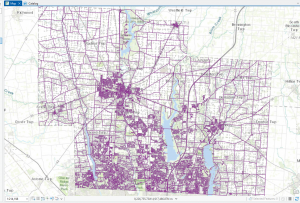
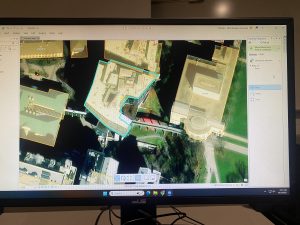
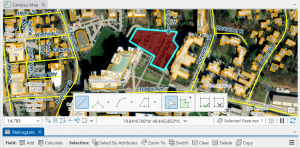
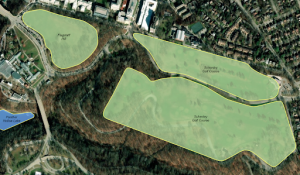
Chapter 7: In this chapter, we were editing, creating, and deleting polygon features, creating and digitizing point features. Use cartography tools to smooth features. Work with CAD drawings. And spatially adjust features. I was doing good, however, in the 7-1 tutorial, I was really struggling to do a few things. I could easily move and rotate the polygon features, but when it came time to split features, I really struggled with that. I did eventually just move onto 7-2.

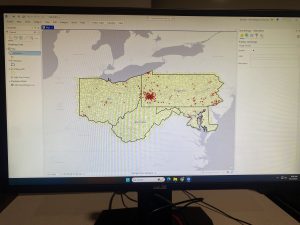
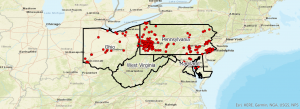
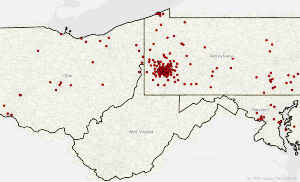
Chapter 8: In this chapter, we worked with importing data from zip codes and addresses. We dealt with how to geocode and process them.

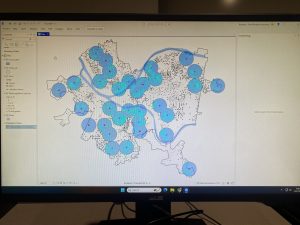
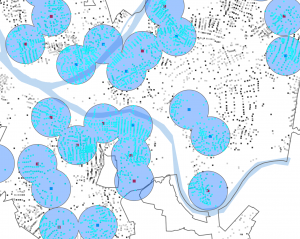
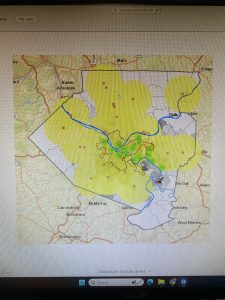
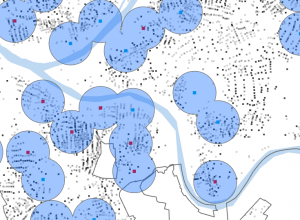
Chapter 9: In this chapter, we worked on creating buffers. We also looked at proximity within our data to a certain area.

Chapter 7:
Chapter 7 went over mostly edit, creating, deleting, and modifying polygon features. Cartography tools were used to smooth the edges, points were created for easier access to edit these polygons, and this chapter had us work with CAD drawings to insert them into the map and edit them.


Chapter 8:
Chapter 8 dealt a lot with geocoding tools and the process. We learnt about how geocoding can select and pinpoint specific attributes and show them. We did this with zip codes and addresses. It then went over what happens if there are non-matches and how to address them.


Chapter 9:
Chapter 9 went over using buffers for spatial analysis and proximity analysis. We learned how to do multiple ring buffers and did a gravity model of demand versus distance from a nearby facility, and then made a scatterplot of it. We then did a cluster analysis of various crimes and explored its data.


Chapter 7


In Chapter 7, I learned how to edit, create, and delete polygon features, create and digitize point features, smooth features using cartography tools, utilize CAD drawings, and perform spatial adjustments of features. It was difficult to rotate and place them on the map, but I found it interesting to realize that bus stops we often see on maps are created in this way.
Chapter 8


In Chapter 8, I learned to understand the geocoding process, perform geocoding using ZIP codes and street addresses, and I was surprised that approximate matches could be made even when the data did not match perfectly.
Chapter 9


In Chapter 9, I learned about proximity analysis using buffers, the use of multiple-ring buffers, creating service areas to estimate a gravity model of demand based on distance to the nearest facility, optimal facility location using ArcGIS Network Analyst™, and exploring multidimensional data through cluster analysis, and I was able to learn this chapter smoothly.
T: 1-1 Introductions
Saving Project Name
Project (next to map,insert, analysis, etc tab) → save project as
Name Tutorial number Name.aprx
Displaying a Map
Bookmarks→map of choice
Basemaps
Basemaps = layers for what you wish to represent (rivers, topography, etc)
Contents Pane
View + Pane = select contents
Contents = selector for what layers you wish to eliminate and keep
Catalog Pane
View tab → windows group → Catalog Pane
Allows for easy access to all project components
Export Layer tool
Share tab (after project, map, insert, etc under the logo in left top corner) → export layer
Saving Images
T: 1-2 Navigating Map Display
Navigation of Map
Map tab→full extent→explore button = center map/info on features
Bottom right buttons do things
Wheel button Zooms in
Map Back button
Map tab→Navigate→ arrows
Turing all Feature classes on/off = ctrl on press hold + check box click = on/off for all
Bookmarks
Bookmarks = zooms to thing you select
Creating new bookmarks = bookmarks (navigate) + new bookmark + name
Manage bookmarks = bookmarks (navigate) + manage bookmarks
Selecting Attributes data = Right clicking + attribute table + select by attribute = where + Name + is equal to + location


Technical things turn me into a zombie… my eyes just glaze over after a while. I know I’m missing things in these chapters and it’s led to a lot of confusion! Definitely going to look over these tutorials and the previous ones as well before the final, because I keep getting to parts of the tutorials especially in chapters 5 and 6 where it will ask me to do something but the data is missing or the function doesn’t make sense. I gotta say it would be nice if some of the references to past tutorials would direct me towards the specific function that was used, not a refresher but a better reminder (that might just be my lack of working memory talking though).

Anyways chapter 4 wasn’t TOO too bad. Importing and exporting things are pretty self explanatory.(i did forget to choose colors for the outlines but it still works)Altering attribute tables was pretty simple too.

Some of the parts with symbology were what I needed a refresher on. Also the joining part was feasible, if not comprehensible.

In 4-3, I had to mess with the queries a little but i think I got it?

Spatial joins were mentioned later on only for me to forget them and looking back is reminding me what those were. Also Krygier pointed out that one error in the set can throw the whole thing off and lead to a bunch of null data. I guess I have to make sure everything is lined up and the same!

I had to fiddle around again to get the center points to work because x and y weren’t filling in on the tool (and then I failed to take a screenshot of that but I can’t replicate it not working so thats good?)

Finally 4-6 wasn’t too bad either, still pretty intuitive. (I could have chosen more effective symbols though)

Now I’m on to chapter 5, posting this late because I need to redo a few parts. Like I said, there were definitely a few things I glossed over. Changing projection systems was pretty ok though.

The local and state plane coordinates were pretty intuitive as well
This took more messing around with but I did figure out the coordinates.

The census data site is kind of confusingly laid out… i definitely need to be told exactly which map is needed. Also the bike data is where I really screwed it up and didn’t clean up the tables properly. This is the best I could do… moving on!

The pairwise dissolve tool was cool!
But I didn’t get the label part.

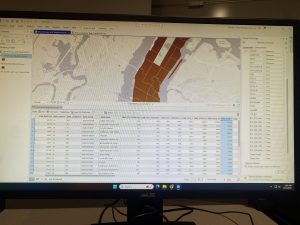
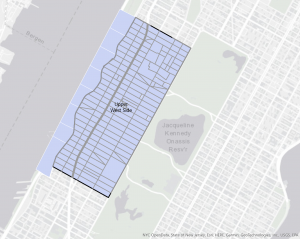
Then I did something weird trying to select the west block groups in the Upper West Side.

Pairwise clip tool is kind of like a layer mask. The above image is from before I did it but it worked fine. Merging layers was similar!


Here’s another bad join!


So yeah. Mostly ok, still pretty confused but I’m just gonna keep powering my way through and review things as needed.
Chapter 4:
Adding a folder through the Catalog pane enables you to access and import data from that folder into your current project.
Older shapefiles can be converted into feature classes, ensuring they can be fully utilized within ArcGIS. ArcGIS provides tools to create, modify, or delete fields in a feature’s attribute table, as well as apply Python expressions to manipulate the data they contain. By joining tables, you can extract only the information relevant to your analysis from a larger dataset. With SQL queries, you can filter datasets to locate only the records you need, using search terms combined with Boolean operators. Spatial joins make it possible to count the number of features within a defined boundary and generate the results as a new layer.
Chapter 5:
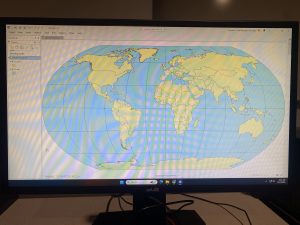
Because the Earth is spherical while maps are typically displayed on flat, two-dimensional surfaces, different map projections are used to translate the 3D surface onto a 2D plane—each with its own strengths and limitations. The Robinson Projection is commonly used for general purposes when displaying the entire globe. No matter which projection is chosen, the larger the area being represented, the greater the distortion that will occur. In GIS software, shapefiles are a widely used format for storing vector data. Many sources of spatial data are freely available online, allowing you to download only the datasets that are relevant to your project. Esri’s Living Atlas provides access to extensive collections of geospatial data, which can be added directly to your project using the Add Data tool.
Chapter 6
GIS provides tools to aggregate data by dissolving or combining smaller groups into broader categories. The clip tool allows you to reduce a larger dataset to a specific region, aligning it more closely with the focus of your project. Multiple datasets can be appended together to form a single, larger feature class. The union tool enables you to merge two polygon feature layers into one combined output layer.
Chapter 4
Tutorial 4-1

Tutorial 4-2

Tutorial 4-3

Tutorial 4-4
Tutorial 4-5
Tutorial 4-6
Chapter 5
Tutorial 5-1

Tutorial 5-2
Tutorial 5-3
Tutorial 5-4

Tutorial 5-5
Tutorial 5-6

Chapter 6
Tutorial 6-1

Tutorial 6-2
Tutorial 6-3

Tutorial 6-4
Tutorial 6-5
Tutorial 6-6

Tutorial 6-7

Chapter 7:
I learned how to change the size of the outline and rotate it.
I also learned how to add and move vertex points.
Lastly I learned how to delete different polygons.

Chapter 8:
In this chapter I learned how to use geocode data by zip code.
I also learned how to rematch attendee data by zip code.
Lastly I learned how to geocode street addresses.

Chapter 9:
In this chapter I learned how to use buffers for proximity analysis.
I learned how to spatially join service areas and pool tags.
Lastly I learned how to be able to perform data cluster analysis.

Chapter 4:

Chapter 5:

Chapter 6: