Pichardo – Week 6

Chapter 7: 

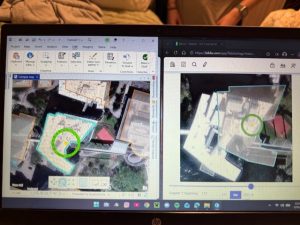
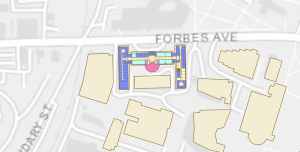
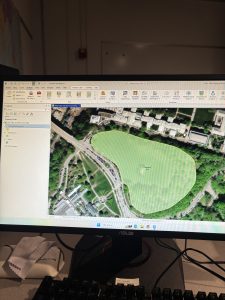
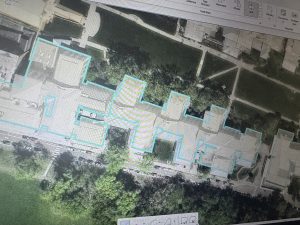
Chapter 7 was one of the most hands-on chapters so far, and I honestly liked that it felt practical instead of just procedural. Learning how to create, edit, and adjust polygon features made GIS feel more interactive. Moving vertices and reshaping buildings took some patience at first, especially when I accidentally selected entire features instead of individual points. Once I got comfortable with snapping and adjusting boundaries, it became much easier and actually kind of satisfying.

Working with CAD drawings and spatial adjustments showed me how GIS isn’t just about viewing data — it’s about improving and updating it. I could see how these tools would be useful in real-world campus planning or city development projects. If a building changes shape or a parking lot is added, these skills would make it possible to update the map accurately.

One thing I noticed, similar to earlier chapters, is that sometimes the wording in the book didn’t perfectly match what I saw in ArcGIS Pro. That caused a little confusion, but I’ve gotten more confident using the search tool to find what I need. Overall, this chapter helped me feel more independent in the software rather than just following instructions step-by-step.

Chapter 8:

Chapter 8 focused on geocoding, which at first seemed straightforward but actually required more attention than I expected. Learning how ArcGIS matches addresses or zip codes to spatial locations helped me understand how tools like Google Maps might work behind the scenes. The idea that there’s a scoring system for matched and unmatched addresses was really interesting.

Creating the locator and working through matched versus unmatched addresses was probably the most challenging part. At times, I had to go back and double-check fields because one small mismatch would cause errors. However, once I understood what the software was looking for, the process made much more sense.

I also liked seeing how the same data could look different depending on the basemap used. It made me think more critically about presentation and how the background layer affects interpretation. While I’m not sure how heavily I’ll use geocoding in my final project, I do think understanding this process is important because it connects tabular data to real-world spatial patterns.

This chapter definitely required careful reading, but it helped me feel more comfortable working with attribute tables and troubleshooting errors.

Chapter 9:

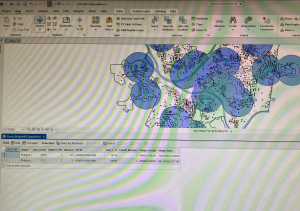
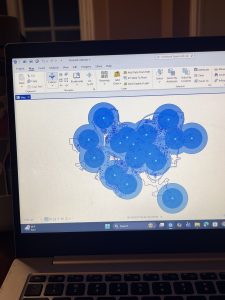
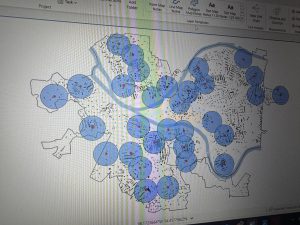
Chapter 9 was probably my favorite of the three. The buffer tools were really cool to visualize. Being able to create proximity zones and adjust the radius made the concept of spatial analysis feel very clear. Seeing the blue buffer circles expand or shrink depending on distance helped me understand how GIS can model real-world impact zones.

Using the Pairwise Buffer tool and creating multiple-ring buffers showed how planners or policymakers might analyze service areas. I started thinking about how this could apply to environmental science, like mapping wildlife hotspots or pollution impact zones. The Network Analyst tools were also interesting because they move beyond simple distance and consider travel routes and accessibility.

One thing I noticed was that changing units (like switching to U.S. Survey Miles) affected the output in ways I didn’t initially expect. That made me realize how important measurement units are in GIS analysis.

Overall, this chapter felt like it tied everything together. Instead of just editing data or matching addresses, we were actually analyzing patterns and relationships. It made GIS feel more powerful and applicable to real-world problem solving.

Evans Week 6

Altering the polygons in chapter 7 was simple because it was pretty intuitive. I’m curious about making CAD drawings. I wouldn’t think that a map of that size would want the interior usage of the buildings displayed. I assumed it would be a scenario where you would use separate maps, one for the full land area and individual floor plans for each building, since its so much information to have on a single map.

Chapter 8 was also easy, since it was a short chapter. It is interesting that setting the needed score lower can make so many mistakes, even if there is a perfectly matching address already. I would think that it would run through perfect matches first, then move on to anything else, but it looks like it runs them all at once.

In 9.3, I restarted at one point because the usage percentages didn’t match with what the book said they should be. They were over 100% for each section. I got the same numbers the second time though, and when I tried to mess with the equation a little, I was still unable to get it to match. The book says that the 11.3 in the equation is to calculate for having a partial sample of the population, but I think that number might be what is causing the difference in percentage usage.

In “Select by Attributes” you can either hit “apply” or “okay.” Is the difference just that “apply” doesn’t close the pop-up, but “okay” does? It seems to do the same thing.

Spurling Week 6

Chapter 7-

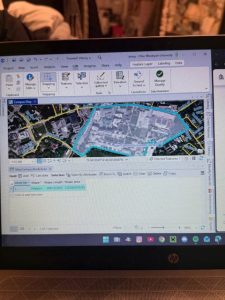
I found chapter 7 tutorials relatively easier. In this chapter, I worked on split features, zooming and formatting different buildings on a map. For example, I opened the Baker Porter bookmark and was able to split the polygon successfully.  Overall, I really enjoyed this chapter and found enjoyment in editing buildings on the map. 

Chapter 8

For some reason I could not how to navigate this chapter at all. I was unsuccessful in finding the create locator tool which was a major part of the tutorial. However, overall this chapter was about navigating different regions and geocode data by zip code.

Chapter 9

This chapter redeemed the last chapter. This chapter helped me learn about the pairwise buffer tool. I was able to successfully use it and use it for the whole chapter/tutorial. I also learned about the proximity analysis.

Isaacs Week 6

Chapter 7:

This chapter was one of the smoother chapters for me, and I found it pretty easy to navigate overall. The geoprocessing tools like Buffer, Clip, and Intersect felt familiar enough that I could often complete the steps without even following the instructions closely. It was satisfying to see how these tools could quickly answer spatial questions just by setting a few parameters. I also liked how the chapter showed the logic behind each tool which made sense on what they could do as I was working. Overall, this chapter boosted my confidence because I realized I was starting to think ahead of the tutorial and understand how the tools fit together.

Chapter 8:

This chapter took me a little longer to work through because some of the symbology steps didn’t look the same as they did in earlier chapters. I got stuck on a few parts where the panels or options had moved, so I had to slow down and figure out where everything was. A couple of steps even required some quick Google searches just to find the right table or window the tutorial wanted me to use. Even with those challenges, I still liked seeing how different symbology choices could change the way the data was interpreted. The chapter was manageable, but it definitely required more troubleshooting and patience than some of the earlier ones.

Chapter 9:  

I enjoyed working through this chapter the most because it felt really interactive and visual. I liked how you could see the map change in real time as you applied different tools and settings, which made the whole process more engaging. The steps flowed pretty naturally, and I felt more confident moving through the exercises without getting stuck. It was satisfying to watch the analysis build layer by layer and actually see the results take shape on the screen. This chapter felt smoother and more interesting than some of the earlier ones, and it made the work feel less like work. 


Fry- Week 6

These chapters dive a bit further into the different kinds of analysis that can be done using GIS programs. Chapter 7 teaches us the formatting of different polygon overlays that can be used in an informational GIS analysis. These formatting tools include creating, deleting, editing, and reframing different polygons over satellite images of buildings. Chapter 8 goes over data and data points a little more in-depth than before. With this, we match data points to their accurate match on the map using ZIP codes and confirm the program’s success in matching these points correctly. I found chapter 8 particularly useful for the future, as matching data points is a crucial part of GIS mapping and creating an accurate model for your intended purposes. Chapter 9 was also rather helpful in figuring out different ways to categorize zones of coverage. This chapter covered a variety of ways that zoning coverage can be done and provided very useful steps in completing the chapter. Overall, I think I am starting to get the hang of the ArcGIS program and am fairly confident I will be able to implement such programs in future work. I am eager to implement a GIS map from scratch using my own data inputs rather than provided files as well.

Obenauf Week 6

Chapter 7

This chapter was easy for me and I actually figured out how to use certain features before being told to by the tutorial. This chapter included a lot of practical skills that I think will be useful to know how to do. This includes moving and rotating polygons as the software is not always 100% accurate and so I know this will be useful. It was fun to be able to create a new feature and is a useful skill.

Chapter 8

This chapter was focused on geocoding and was very short. We learned how to rematch addresses and use other various new tools. Geocoding is the process of converting text-based location descriptions into precise geographic coordinates to plot them as points on a map. This chapter was fairly simple for me. 

Chapter 9

This chapter showed us how to use buffers which is a zone around a feature. These are used for drug-free buffers around schools, food deserts, etc. We also learned how to use multiple-ring buffers which are used to create various buffer zones inside each other. We used service areas to estimate a gravity model of geography. 

Uible week 6

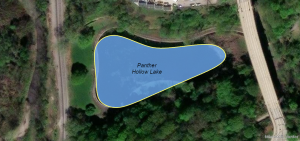
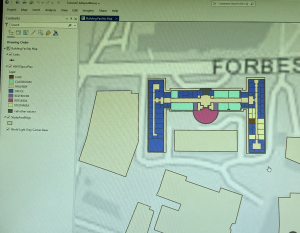
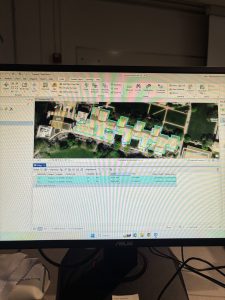
Chapter 7 is much easier than some of the other chapters we have done in this GIS program. For the first tutorial, we had to move specific buildings to align them with the building shapes on the map we were looking at, which was very easy and took only a few minutes. Example two of Chapter 7 began by creating a specific point in the University parking lot, ensuring it was a specific color and could be shown on the map. The other part was that we were deleting specific things and making sure they stayed deleted. In tutorial three, we had to use a smoothing tool to smooth out Flagstaff Hill, which was very confusing at first because I couldn’t find the specific tool they asked for. I looked it up, found it, and it didn’t take me much longer. After that, the specific tutorial asked me to smooth out the specific areas it specified. for tutorial for we had a specifically put the colors on the specific building and have them make sure they were correctly color coordinated at first they didn’t come through due to the layering on top of it, but the tutorial showed us how to make sure that the layering didn’t cover them completel., this one was specifically really fun to figure out as it made identifying specific things in the building more interesting and you could figure out an office space a classroom hallways restrooms and this kind of shows out how building planning works, which is very interesting. Out of all the other chapters we have done, I think chapter 7 is probably one of my favorites. It adds onto things that we’ve already learned how to do, exactly as well as adding some new things on top of what we’ve already learned, and keeps expanding the specifics of what other chapters already showed.


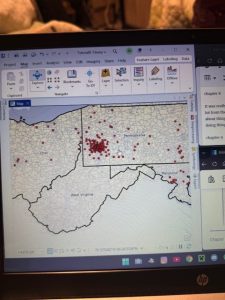
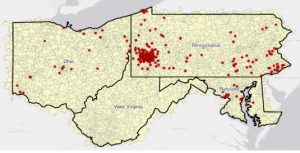
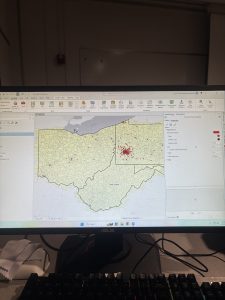
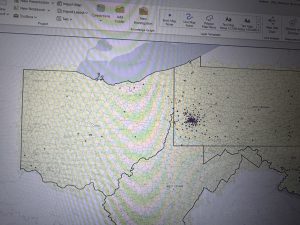
Chapter 8 had only two tutorials, but both were somewhat long, especially the first, which asked us to build specific features based on ZIP Codes in Pennsylvania, Ohio, West Virginia, and Maryland. in the tutorial, we may have started out very big with those four states, but it’s specifically broke down into defining the specifics in a very quick manner where we specifically went down into major cities like Pittsburgh, which was very interesting because we went from very large very quickly to very small, and I only a matter of minutes and only a few clicks between each one. Compared to the first tutorial, the second tutorial was a little easier but a little bit more tedious. We specifically had to put many things down, like our left address and the locator house address, which was very confusing at first when reading the specific tutorial. Compared to tutorial one, this one definitely took me a little bit more time, but it was definitely worth it. It was very interesting to see how, with just a few numbers, you can point out so many different places in such a major area. Both of these tutorials were a little confusing, but after a little bit of time, I figured them out with very little problem and felt like I completed a harder assignment compared to chapter 7, even though chapter 8 only had two examples; these two examples were a lot more complicated compared to the chapter 7 examples

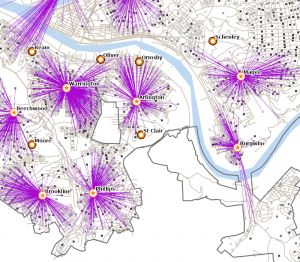
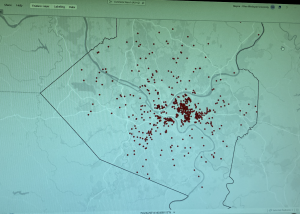
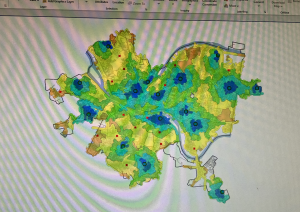
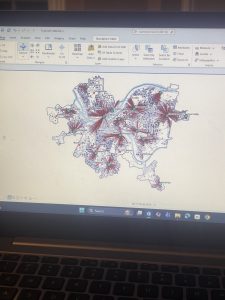
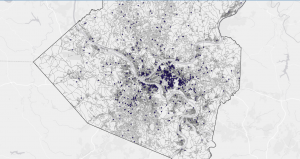
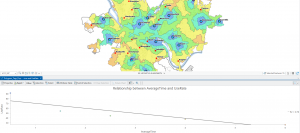
Chapter 9 is kind of like Chapter 7 in that the tutorials didn’t feel as hard, but there were many of them to do in tutorial one of chapter 9, we were trying to find the pools in the area of Pittsburgh, which was really interesting because at first we had a plug-in we were looking for pools directly and then we put them all into .5 of a mile which the map shows us and these giant blue circles, which areas in a .5 mile each other have a pool and some of these areas overlap with each other but certain areas have a pool to them in tutorial too we do almost the exact thing is tutorial one but instead of .5 a mile we switch it to a mile. This gives us another set of circles inside the larger circle we made in the first example. This adds an additional buffering ring to our original circle. in tutorial three of chapter 9 instead of having the circles it’s this time we have the map of Pittsburgh and each pool is labeled with its big dot and where it relates to all the other pools and we can kind of see any more colorful pattern, where each pool is compared to the other one in distance darker the color it has meaning it is the pool and the lighter color it is is how far it is away from a pool. It has to calculate the average of a pool of values that are not adjacent to each other. In Example 5 of Chapter 9, we did a data clustering analysis. We collected data from specific areas in the city of Pittsburgh on crimes committed by age and on how likely people were to commit those crimes in those areas.

Mason Week 6

Chapter 7

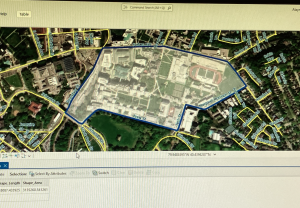
Chapter 7 walks the user through the process of managing a map that contains real imagery. I found this to be a valuable chapter and relatively easy to understand. It taught me how to rotate and move polygons to match the satellite images, as well as create different polygons for new features. The chapter also began to familiarize me with the Edit ribbon, which I feel as though I had not interacted with much in prior chapters. The edit ribbon contained the move and edit vertices buttons. The edit vertices buttons allowed me to add and move vertices to morph a polygon to match the satellite image. There were other ways to edit polygons, though, such as the trace and split buttons. The trace button allowed me to create a selection using the streetpaths as a guide, while the split button allowed me to make two separate polygons out of a single polygon. I had some trouble with the last tutorial of the chapter when asked to import data for a building polygon. I will say that this chapter seemed to easily explain how to change the visual features of a map when needed, which I feel will be quite helpful when building my own maps. 


Chapter 8

Chapter 8 was shockingly short, with a heavy emphasis on zipcodes and other floating techniques. One technique is the geocode addresses tool, which helps to create dot plots on a map using specific zipcode data. There is also a tool called a collect events tool that does something similar, placing dots, this time with a greater variety of dot sizes. Much of the chapter was a simple walkthrough of different tools, with almost all of them adding or altering points on the map in some way. I find this valuable as it is important to strategize what the most effective way to visualize your data is, and the creators of the GIS platform recognize this by providing the user with many different ways to do this. Additionally, there was some more use of the attribute tables, which is always a good thing to refresh my mind on. I was a bit surprised that ZIP code data points had been covered so late into the textbook, as I would think that this is a form of data that I will be utilizing relatively frequently going forward in my work with the GIS platform. 


Chapter 9

A large aspect of Chapter 9 was to create different types of buffers around different data points on the map. It walked me through how to change the radius of the buffer and what tool to use to create a buffer, which were the pairwise buffer and the multiple ring buffer. The pairwise buffer tool creates a standard radius around the data point, while the multiple ring buffer can create a greater number of buffers, and also provides the option of making them overlap. A lot more was done in the analysis tab within this chapter as well. One of the features from the analysis tab is the service area option, which can change the visual attributes of the data measured within the map. I personally thought that was a cool feature to introduce, and it was interesting to see how different layers of data can be shown in that way. It was also a good way to show how the data can change depending on the distance from a particular point. Another important topic covered within the chapter was the visualization of data in the sense of creating different types of representations, such as tables and dot plots. It felt very appropriate to finish the tutorials off with some additional support in creating tables and such. 

Deem Week 6

Chapter 7: This chapter was pretty easy and went well for the most part. I ran into an issue in the first tutorial where I could not select the outlines of buildings, but after resetting I was able to complete the tutorial without issue. I encountered no other problems with this chapter.

Chapter 8: Didn’t have any issues with the tutorials for this chapter, the only thing that went wrong was in the second tutorial the computer froze while running the geocoding addresses tool. I waited several minutes for it to unfreeze but ultimately had to power off the computer and restart the tutorial. Afterward, I encountered no issues in this chapter.

Chapter 9: I only had to restart tutorial 3 in this chapter due to making a mistake early on, I think it was with the spatial join tool. Other than that, there were no issues in this chapter. I feel like after completing all these tutorials I am getting a better understanding of how tools work and what they can be used for.

Butte_Week 4

Chapter 1:

Starting with a completed map and working backwards is an interesting tactic to teach beginners how the system works. That way the maps are already mostly constructed and the learning is very specific/ centered in a certain task within that map. Connecting to that, the “Your Turn” sections of the book is a smart way to ensure the reader is actually grasping the material. It makes you use your own brain to work through what was just done as a tutorial on your own. Also, the textbook including photo examples alongside the tutorial is very helpful in making sure I haven’t messed something up. It’s a good visual guideline. On the contents pane, the way it’s arranged to be from what’s drawn first and “on the bottom of everything” makes a lot of sense in regards to a map and layering. I knew everything had its own layer from reading the earlier chapters, but the tutorial extended that thought even further by having this particular overlay. It makes a lot of sense to me that the layers are drawn on top of one another, it’s almost like altering a physical map by adding marks directly on top  of the paper.

A personal connection to the system of GIS that I had thought about when working was the shortcuts. Taking “snapshots” and using Ctrl S to save the project is something I’ve instinctually been drawn to do after spending years working in Photoshop with a similar shortcut interface. I never wanted to lose work, and from that I learned to always save my work, which I’ve found really carries over to this system as well. By having an original base saved/ snapshotted, it lowers the impact a mistake might have on the project, ensuring there is always that beginning point to return to if needed.

Finally, I had a slight moment of frustration at the end of the tutorial when it came to the labeling. The program is such a large system, and it has a crazy amount of buttons, so simply locating where all the different buttons and options are was a lot to process. It was frustrating when I couldn’t figure out where something was hiding in the interface.


Chapter 2:

This chapter diverged from the 2D maps, into adjusting them to be seen as a more prominent 3D. I really liked the way that the interpretation of the maps can completely change between 2D and 3D. How some details that may relay a certain type of information isn’t the same linear with the two styles, or how an aspect of the 3D model can bring to light information that couldn’t be seen the other way. This really brings to light the idea of understanding your map. Knowing who/ what the map is for, in order to adjust and label it in a way that will relay the kinds of information needed within its purpose. This chapter really focuses on clarifying the details of the map. By making the subject notable while also adding the necessary context to the background.

Something that I found interesting while working on this chapter, was the mention of color blindness. Which was something I hadn’t actually thought about once when creating all these models of colors. It was neat to see the inclusion of altering how a map is displayed so a person with color blindness could achieve the same aspect of detail when mapping, even without using bunches of colors. It also doubled as a lesson in understanding how to change the symbols of a map, and explaining that a variety of shapes can be used instead of colors to convey the same knowledge of the key.

I will add as a side note, that I absolutely love playing around with the different colors! Obviously the purpose of a map is to convey information, but I find it fun to adjust the colors in an aesthetically pleasing way, or to pair associated colors with the topic of the map.

Chapter 3:

This chapter was interesting because we pivoted even more and went from working within the ArcGIS Pro, to learning the Online system. On that topic, I feel as though in a way, ArcGIS Online is a much smoother/ easier interface to work with. I don’t know exactly how to explain that, but maybe it’s due to the fact that it’s online and available for anyone to access. Perhaps it’s made a bit simpler and cleaner for anyone to play around with and use. Before that section of the tutorial however, I really liked following the detailed explanation of how to create layouts from scratch. This is a very useful skill, in being able to make any style of chart or map view of the project for easy download and display. I liked how the textbook described going about making these layouts. To think about retaining this goal of designing it in a way that anyone could understand it, like you’re sharing the maps to those with no experience in the software. It reminded me of the explanatory mindset of teaching something in a way a child or an alien could grasp.

I have a creative mindset, so I adored the section of the chapter that revolved around storytelling within the StoryMaps. We were giving the map’s their story. In a sense, this is leaning into the analytical aspect of the “Geospatial Analysis.” I appreciated the angle of art, from adding a cover image, to having the potential to completely change the design/ layout. This part, just like creating layouts, is highly important to know how to do. The uses for the completed story and layout are endless. My first thought was using it for a website, or some form of journalism as I thought it resembled an article in a way. It’s returning to the idea in the first textbook of the many everyday uses that GIS has.

The quote from the mathematician, John Tukey, “minimize ink!” is very applicable to mapping on GIS. And I rather enjoyed the idea of never deleting any values even if they don’t add anything to the image. It’s like with art, you might take a hundred photos or create notebooks of sketches, and only a handleful could be things you actually like and will use. You don’t just throw the others out though, because they still hold power in what they don’t show. It’s better to keep something and not use it, then to delete it and realize you really did like it, or did need it after all.