Datta – Week 4

CHAPTER 5: ArcGIS Enterprise

  • Used for more private (but still shareable) instances of WebGIS
  • Uses User-managed infrastructure, such as user-managed hosting
  • Allows for geoprocessing, which is not offered in public GIS.
  • Combines the ArcGIS portal and server to work.
  • To run an ArcGIS enterprise server:
    • Server must either be licensed as GIS server standard
    • ArcGIS portal must be connected to the GIS server
    • Data Store should be configured as a relational database and a tile cache
    • Web Adaptor must be installed in one instance of ArcGIS enterprise
  • There are various tile layers which are pretty self explanatory from the title, Raster Tile, Vector Tile, Feature Tile
  • ArcGIS data will either be referenced or copied.


APPLICATION: This is obviously very useful for enterprises, but I remember Krygier mentioning that ArcGIS can be used for fictional cartography, so my immediate thought was to use something like this for a DnD game, weirdly?


CHAPTER 6: Real Time GIS

  • Real Time GIS is used to handle that which moves change or appear continuously and would need constant updating
  • ArcGIS Velocity, ArcGIS mission
  • Space-time data can be separated into several categories
    • Moving data (things that are actively moving as data is projected)
    • Discrete (events that happen and need to be reported instantly)
    • Stationary (stays still, value changes)
    • Change (i assume you know what change is)
  • Time is usually measured in start point and duration time
  • IOT: network of objects used to survey data
  • Smart City: A city which can monitor in real time resources and data and help manage the city effectively
  • Real time GIS (Geoevent and Velocity) digests data, processes it, and presents the data in real time, unlike other systems which require manual input
  • Two ways to do real time: Poll and Push
    • Poll asks the server for new data once in a certain amount of time, usually 30 seconds
    • Push pushes data from stream services to a web client (automating the manual input?)
  • Dashboards can be used to quickly present real time data to people who need it
  • Mission is like a Real-Time GIS mixed with what I think is a task manager and messageboard?


APPLICATION: Something like mission, but for students? Make a university map (internal and external if possible??) and allow them to input assignments they have to do and the rooms they have to turn it into. Would be most helpful for freshmen in the labyrinth that is SCSC in my opinion.

Asp – Week 2

Chapter 1

Chapter 1 introduced me to the fundamentals of ArcGIS Online and how Web GIS allows data, maps and applications to be shared and accessed by anyone around the world. I was able to learn how to create a feature layer from a CSV file, add attachments and even build a web app using the Attachment Viewer template. Web GIS is powerful because it makes mapping both interactive and collaborative with advantages like easy access, cross-platform compatibility and low maintenance. I also learned about the key components of a web map that are basemaps, operational layers and tools which work together and makes information functional, clear and visually appealing.

Chapter 2

Chapter 2 was all about smart mapping and storytelling. I learned how to publish feature layers using geocoding, style them using smart mapping and enhance pop-ups with arcade expressions, charts, and images. This chapter also talked about ArcGIS StoryMaps which can combine maps, text and multimedia for telling spatial stories. The use of sidecar and swipe blocks allows users to explore relationships and change over time making data easier to understand. I liked how smart mapping can reveal patterns like population changes or housing trends without needing to analyze each data point manually.


Application Idea

One potential application I could do is a StoryMap that would showcase how Hilliard, Ohio, which is where I am from has grown over the years by showing new housing areas, schools and parks. This would include photos of local parks and pop-ups with graphs showing population growth. I could also do a section on Ohio Wesleyan University where I can map out key campus buildings and green spaces while using a swipe block to compare how the layout of campus has changed over time. This would help in visualizing community development and environmental balance here in Central and Delaware Ohio.

Inderhees- Week 3

Chapter 3

This chapter focused on how to create web apps to make maps interactive and easy for people to use. One of the main things I learned is that web apps can show how data changes over time, which is especially helpful for topics like land use change, climate patterns, or population growth. The book explained different tools called widgets that you can add to web apps. Widgets make it easy to add useful features like sliders, search bars, filters, charts, and more. I liked learning about the 3D and 2D feature because I think maps with prominent data make data feel more alive. Another important part of this chapter was learning how chart widgets can make data clearer by showing graphs and not just locations on a map. This is helpful when you want people to understand patterns or trends quickly. Filter and query widgets also stood out to me because they help you focus only on the information you need instead of looking at everything at once. I think these tools make maps much more user friendly and help for communicating scientific information to the public.

Application Idea:

I will use this chapter to show the tornadoes that have occurred throughout Indiana in the past years and how they have affected the land.

Chapter 4

This chapter explained mobile GIS and why it is useful. Mobile GIS lets people collect and use spatial data in the field instead of having to wait until they return to a computer. This is very helpful for fieldwork, which I am excited about because I hope to do field research in the future. Mobile GIS is great for tracking data in places that computers cannot reach, and mobile devices have GPS, which makes data collection accurate and fast. The chapter also explained some challenges, like needing good battery life and sometimes having weak cell service. Still, the benefits seem very strong. It also covered VGI (volunteered geographic information), which means regular people share geographic information, like reporting wildlife sightings or road issues. Another exciting topic was augmented reality (AR), which lets you see digital map information on top of the real world through your phone camera. There is also VR (virtual reality), this is a computer-generated simulation. There are other concepts as well. I also learned how feature layers in mobile GIS can be editable, so users can add new points, update information, and even delete things if needed. Surveys can also be added to mobile maps so users can submit information directly from their phone.

Application Idea:

I can use this chapter to help in my volunteer work at the Ohio Wildlife Center to help track where animals are found with what injuries. This can help for us to locate where problem areas might be that put different species at risk.

Stephens Week 3

Chapter 3:

SO experience builder just kind of modifies and combines apps and widgets? I like how it interconnects

Please don’t make me use the developer one my computer is crying

I kind of feel like I’m making an overcomplicated powerpoint again.. Therefore I chose spin animation instead of zoom in.

I put the maps next to each other as I modified the 3D one, so they would be easier to see. Also had some trouble getting it to snap to the corners so I just dragged the maps. Another thing that helped me that the book didn’t mention is being able to select widgets. I added a fade in effect to the image in the data summary and it looked pretty cool in the live view. I kind of wish it would select the hurricane or earthquake on the 3d map instead of just hiding everything else.

I also adjusted the colors and font in data view to make it look fancy, and I tried to find a way to center the text better but the centering options i could see just moved the text box.

I was very confused at the table part because there was no blank spot, but it turned out the page was wider and I wasn’t zoomed out. I had another issue earlier with the dynamic content where I struggled to find the pane because it popped up hidden in a corner. Are there some weird presets?

The filters and SQL expressions were also a lot like desktop

When it was time to embed the link, I had to paste it into my browser and copy that link because it didn’t accept the shortened one. That’ll be important to remember. Here’s the final product for chapter 3.

https://arcg.is/ienWi

CHapter 4:

For my project I think it would be so cool to actually go to metro parks and take my own pictures, and attach them to a map to make my own feature layer. Enabling public attachments would also be a nice way to make it an interactive and collaborative web experience.

Starting on Survey123 and it’s ok so far. I think the imagery with labels basemap will be perfect for my metro parks project

Site kept glitching out and zooming back out to the whole world when I tried to go to Delaware. Eventually I had to refresh it a bunch and allow it to get my location through my computer.

I had to add the rule for showing the recyclable categories in a completely different way than the tutorial said. When I opened the survey on my phone and selected recyclables, the type question came up so I guess whatever I did did the trick!

When I started making my own layer and adding fields I noticed that the tutorial had the wrong order to do things in. Choosing the type (integer) is before naming the layer. I think the website has been updated a bit since the book was put out.

https://arcg.is/TDueK0

The quick capture project was pretty simple to put together and I think I could make something with that for my project. It wouod be a great tool for recording locations and capturing pictures of invasive plants, and maybe i could attach it to a second app that gives a rundown on identifying them for people without a botanical background. Adding images to the forms might help too.

For the AuGeo app, I’ll test that later because I picked a couple places in Columbus, but here’s one of them. I’ll make a note to add them to next week’s post.


Wagner Week 3

In chapter 3, I learned about ArcGIS Experience Builder. I learned the basics of experience builder and some of its key features. The web apps that are created using the experience builder are called web experiences. After learning about the basics, I started tutorial 3 to create a web experience that displays data about historical earthquakes and hurricanes. First I created a 2D and 3D integrated web experience. There were a few steps that I had to google where the buttons were but other than that, it went smoothly. Next, I configured map message actions. Then I configured dynamic content, the table widget, and the filter and chart widgets. Last, I added two pages. When I was adding the link to the second page, it said it only supports HTTPS so it wouldn’t work. I just moved on. Overall, I enjoyed this tutorial and I see how this type of app can really help show data and make connections.

Chapter 4 was all about mobile GIS. I learned about the concepts and advantages of mobile GIS such as mobility and ease of data collection. I also learned about field maps which allows users to display web maps, search for places and features, such as assets or areas of study, and be directed to them. In tutorial 4, I learned to use Survey123, Field Maps, QuickCapture, and AuGeo. While doing 4.1 and adding a map, I couldn’t find the imagery hybrid basemap. I also could not figure out how to set the rule for step 14. In the end, the survey still worked fine. In 4.3 I couldn’t find the create a list button for step 15 and so I wasn’t able to complete the rest of the tutorial. This created a problem for the next several tutorials but I am still going to try and figure them out. It was interesting to download and use the apps on my phone when I had no idea GIS could connect to things like that. I thought AuGeo was a cool project as well.

An application I could create would use experience builder to show crimes in a specific area. I could have the 2D and 3D maps and show data that shows the different types and amount of crimes. I could add other pages with additional information about the location and maybe a website with resources on how to report a crime or stay safe. 

Baer – Week 3

Chapter 3

Chapter three show how to use apps to show how data changes over time. It also showed a various amounts of widgets that make map making that much easier. I really liked looking at this part. Maps that have a slider always seem so cool to me. I also think it is a great way to share scientific/technical findings with everyday citizens who may not know how to read maps. These maps combined with story maps are the perfect combo.

One application for this could be showing the growth of urban developement by a river and how the river changes over time.

Chapter 4

In this chapter, we looked at mobile GIS. I thought this part was really cool. I want to do field research someday, and the idea of being about to plot study sites on the go rather than having to sit down at a desktop was really cool. I think some of the VGI features were really cool too!

An application for this chapter could be used to determine animal sightings for hunters or conservationists. Another one I thought was funny was to use it to see where the police sit on the road the most to avoid a ticket. But that’s a joke.

Kozak Week 2

Chapter 1

Chapter 1 is used to introduce ArcGIS online and ArcGIS Enterprise and the basic operations of the program. Web GIS uses web technologies to allow people to interact globally and access information instantly. Some of the advantages of Web GIS are global reach, large numbers of users, low cost per user, better cross-platform capabilities, easy usage, and easy maintenance. There are five main content types available with Web GIS including data, layers, web maps and scenes, tools, and maps. There are three main components that make up a Web GIS map and they include the basemaps, the operational layers, and the tools.

Chapter 2

Chapter 2 is about smart mapping and storytelling. Stories are the most popular type of web apps. This chapter talks about the different types of hosted layers, including hosted feature layers, hosted WFS layers, hosted tile layers, hosted vector tile layers, hosted WMTS layers, hosted scene layers, hosted image layers, and hosted map image layers. There are several different ways to publish hosted layers including creating a feature layer from your own data, creating a feature layer from an existing template, and creating an empty feature layer and defining your own fields. This chapter also talks about smart mapping which enables people to analyze, create, and share maps quickly. Smart mapping can also perform exploratory data analysis which helps people understand potentially hidden patterns. Pop ups are used to show geographic data and insight. A good WebGIS app is fast, easy, and fun for the user. An ArcGIS story tells the who, what, when, where, and why. It uses a combination of maps, narrative, and multimedia to create a story. 

One potential application would be to create a map of the most popular ski mountains in NH. The map would display location as well as information like mountain height, average number of visitors per year, and mileage of ski trails. The information would also include images of the ski mountain or logo to help familiarize the audience.

Dondero – Week 3

Chapter 3:

  • Web apps allow you to create interactive maps, with objects such as sliders to show how data changes over time, and searches to select specific pieces of data.
  • You can use the web app builder to create or modify existing webapps, and use widgets to quickly add features and functionalities to your map that weren’t previously available.
  • Chart widgets allow you to display data visualizations beyond just the spatial methods provided by the map.
  • Filter and query widgets allow you to parse through the data more efficiently, in order to find the information relevant to your project.

One idea for a web application that could be made using this information would be a map with a timeline showing how the highway system in Ohio has grown over time. Charts could be used to show growth numbers year by year, and a filter widget could be used to select only data from, for example, northeast or central or southern Ohio


Chapter 4:

  • Chapter 4 discusses mobile GIS, which has several advantages over traditional desktop based GIS.
  • Some of these advantages include the ability to work in areas where it would be infeasible for traditional GIS to operate, the inherent benefits of using a device outfitted with GPS capabilities to collect spatial data, while some of the disadvantages include reduced processing ability, as well as cellular coverage and battery range limitations.
  • Mobile GIS also has several unique application types, including VGI, which includes user submitted information like police activity or road accidents, and AR, which overlays additional data onto the world through the mobile device.
  • Creating feature layers for Mobile GIS is unique because of the added ability for users to append, update and delete data from their device.
  • Additional data infrastructure such as surveys can be integrated into your applications as well, allowing for user input collection.
  • Many options exist for data collection, with varying levels of ease of use vs capabilities of the app.


One idea for a mobile GIS application would be an application that would allow users to submit animal sightings at their location, which could be useful for determining rough estimations of populations present in a certain area, if enough people used the application.

White Week 3

Chapter 3 explores the use of ArcGIS Experience Builder as an interface and tool to build more functional web apps with minimal programming and minimal code involved. There are integrated premade widgets with this that provide functions like mapping, table view, querying, charting, and reporting. Essentially these things interact with the 2D or 3D data we are working with. The primary elements of experience builder are templates, themes, widgets, pages, windows, layouts, data sources, and actions. These are all discussed and the table, filter, chart widgets, dynamic content, and actions components are put into action in the tutorial. There are three options for how to use experience builder. You can start with a template for apps for mobile devices, you can modify and customize templates for whatever medium or screen size of your choice, or finally you can build a web app from the very beginning allowing for the creation of a precise and personalized web experience. A web experience is essentially a web app created through experience builder. From my understanding, experience builder prioritizes a mobile device design and layout. Widgets seem to be super effective and useful. You can formulate a custom widget or theme as well as make widgets react to various actions. Basically these widgets are tools that can be added to the map/app and how they show up and perform can be configured by us whether it be to analyze data or to work with feature layers by adding or editing them. In terms of the work flow for configuring a web experience we start with starting from scratch or selecting an existing template to use. Something important I took away from this from the book is that the categorization website is a template that exists across multiple pages. Then you pick the theme which is just for looks not impacting the layout and its content. At this point, we can bring in feature layers that we assembled or that we downloaded, etc. We can also bring in web maps or web scenes. The fourth step in this workflow is to work with basic/ functional widgets or layout widgets. A basic widget has functional capacity acting as a tool for the app including map, legend, layers, query, filter, edit, chart, elevation profile, survey, and more. Layout widgets are organizational widgets that help for organizational purposes including section, column, row, fixed panel, sidebar, and more. These are the two types of widgets. Once we implement widgets into the web experience, then we can configure associated data sources, styles, and actions. Next, different layouts can be made of the page(s) of the web experience. The options include layout for small, medium, and large screens. The layouts are kind of refined and adapted to the web experience. This reminded me of a bit of smart mapping in the previous chapters and geog 291. The final step is the finalization process including saving, publishing, and sharing the web experience. The previous process is versatile and is nice allowing us to visualize how our creations apply to say a mobile device versus a desktop. We have options of mode inducing a draft, published version, or published with unpublished changes where the draft mode is the best case scenario for edits to be made without impacting the published version. This is the general workflow. The book moves on to discuss the basic components of web experiences which can have one page or be multiple pages or windows as I have indicated previously. The web experience overall as one consistent theme yet each page can have individualized template layouts. A page as the foundation of these web experience apps contain a header, a footer, and a body, by default. A menu widget can be added to apps with more than one page to show those pages in a menu selection type of thing. Windows are different from pages in that windows only have body content but can appear in a certain position or appear next to a relative widget tool. The fundamental uses of windows include splash, alert, confirm, and ToolTips. Each page or window has an outline view which actually displays all the widgets involved. This makes widget functioning and management more efficient as if you want to copy a widget it can be copied and the settings will be carried over without having to recreate the widget essentially. Widget settings for configuration include content, style, and action. Content has to do with the data sources, the associated links, the behavior, and so forth. Style has to do with things like size and color. Actions are performed by widgets and allow widgets to work together and work off one another. Widget actions include message actions and data actions. Message actions act on their own based on triggers, requiring you to define a trigger, a target, and an action. Data actions occur manually and these must be selected from a pre-configured list. The three components of message action configuration are triggers, targets, and actions. Basically a trigger is the event that starts an interaction like a map extent change whereas a target is the widget or the framework that responds to a trigger. An action is the actual function or operation that the target performs like zooming out and panning to a new location. Dynamic content uses different widgets to show information that changes based on user interaction, things like data updates, or other connections. Basically various widgets like text, list, or image are connected to a data source in which attributes or statistics for instance, populate them. The final part of the chapter talks about the three editions of experience builder. One point highlighted is that the ArcGIS Online edition doesn’t allow for custom widgets. Developer edition is the most advanced and enhanced edition but has to be set up.

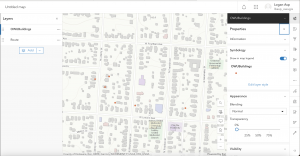
In this tutorial for chapter 3 I created a single page and ultimately a multipage 2D and 3D web experience using the ArcGIS Experience Builder. I added widgets, including section, map, image, text, table, tilter, chart, and menu. In addition, I configured widget content, styles, actions, and animation. I did this all without programming which is part of why this is so efficient and useful wide-scale. I like how experience builders can integrate 2D web maps and 3D web scenes, that is that these 2D and 3D views can be in one app whereas before I remember these kind of being separated. The tutorial went smoothly for the most part. It took me a while and there were inconsistencies in the process and the actual actions I was performing in experience builder. You kind of have to just work through these things, use your intuition, make the best decision based on your experience, push through. The main problem I had was adding the URL (bit.ly/3pGylar) to the alerts page. I kept getting a warning saying that only HTTPS is supported. I made sure I typed the URL probably considering it is case sensitive but I could not get the sample from the ArcGIS API for JavaScript document site. What I did instead was go to the site and copy the full URL from my browser and put that in. It worked out. Here are some screenshots from my work, one from the design window and one from the preview window:

One idea for an app using material from chapter three is to create an experience involving a corporate map and facility finder. I thought about this in the context of my family business. We have a new headquarters and new office buildings. This could help employees, visitors, or applicants. navigate a large facility area. Widgets could be used to locate a certain building and pop-up windows could show things like office hours of operation, reference images, and maybe even directions can be integrated in some way. I would use the filter widget to allow the user to filter for a department or something. I could even go all the way and add an embed widget for which I could include a live Survey 123 form for facility feedback of the new corporate headquarters.

Another idea would be to use the web experience setup to formulate a 2D as well as a 3D mapping of urbanization and development generally here in Ohio or elsewhere. The intention would be to display the impact of urbanization on agricultural endeavors.

Chapter 4 discusses the connection between Web GIS and the proliferating use of mobile technology in the modern era. The chapter explains how Web GIS has adapted to that trend, the need of many populations all over the world through which feature layers can be edited and the implementation of three options of app building. ESRI mobile apps are introduced like ArcGIS Field Maps. I remember a bit about the popular types of apps and frontiers from chapter one. Chapter one touched on this idea of mobile pervasiveness and Web GIS and how to best utilize Web GIS in this modern context. I like the idea of mobile GIS and I like how the book compares this to desktop GIS. This got me thinking about how with geog 291 we needed a desktop, or a strong windows computer but with mobile GIS you just need your phone for instance. Before I get into what the book says I think something super valuable about mobile GIS is its facilitation of field work. Whether it be in data collection or real time information collection, I think mobile GIS has particular prominence and advantageous capacity out in the field. The book also mentions the facilitation of communication through which professionals in the field and consumers can both simply interact or collaborate on a deeper level. Location awareness and mobility are some other benefits of mobile GIS. I think Mobile GIS’s application to a range of wireless communication technologies like Wi-Fi, cellular, or even Bluetooth is super cool. As with everything, there are limitations and so technology has become so advanced that these limitations are minimal I would say but also are continuing to be minimized. With that, limitations must be considered in that the screen size of a phone is much smaller than that of a computer, along with other functioning capacity like battery size and CPU speed. Ultimately, mobile GIS can be used by anyone whether it be an individual for personal use, to learn what are the best places to visit in a city, or more formal use for an organization to explore data or conduct field surveys. The next part of the chapter talks about editing feature layers, views, and working with feature templates. Although you can edit features with ArcGIS Online, the book points to the fact that ArcGIS Pro is the best option for editing capabilities. We can allow users to add photos or other files to feature layers if we enable attachments and we must be the wonder of hosted feature lay or the admin of an organization to make such edits. Edit tracing is also a capability through which changes in the data of a feature can be monitored and analyzed. One way to make it so different groups can see different sets of info in our hosted feature layers is to create a view layer from the hosted feature layer. This is super useful for allowing organization members to maintain the authenticity and up to date status of data while also sharing the data with other groups and the public. This view would have editing capabilities turned off but the good thing is the public sees any updates or changes to the other layer that is manipulated by the organization as both layers reflect the same data. A cool side note is that Survey 123 is used to create smart surveys, Arc GIS creates a feature layer and the associated view(s) for us. Moreover, a feature layer can have a feature template which defines the type of data items that users can add to a layer. A benefit of this is that it ensures the accuracy, reliability, and consistency of the data while making things in terms of editing efficient for the user. This feature templates are used a lot with mobile data collection. Next, there are three mobile app development strategies including the browser-based approach, the native-based approach, and the hybrid-based approach. Native apps are the apps that we install and download on mobile devices. These are good but have a high cost limitation. ArcGIS native apps for field operations include ArcGIS Field Maps, ArcGIS Survey123, ArcGIS QuickCapture, ArcGIS Navigator, ArcGIS Companion℠, ArcGIS Earth, ArcGIS Mission Responder, and ArcGIS Indoors™ mobile viewer. These apps intentionally apply to all areas of field work like planning, navigation, coordination, and more. ArcGIS Field Maps is very versatile and supports the planning, tracking, understanding, and data capture phases of field workflow. ArcGIS Field Maps allows users to show web maps, seek out places and features, and be directed to those places. There is a web app and a mobile app. The mobile app has an offline mode through which you can manage work while in remote areas or areas in the field out of the office basically. The mapcentric data capture component is cool as it allows users to collect and organize geographic info with an interactive map. ArcGIS Field Maps knows what is happening in the field and feeds tracking data into a location-tracking feature service which stores tracked locations as features. ArcGIS Field Maps is integrating ArcGIS Navigator and two interesting things with this is that an organization’s own data and unique or specialized navigation rules can be used along with the option for downloading maps for offline mode navigation use. ArcGIS Survey123 allows us to collect field data in a structured way and create surveys with pre-defined questions that connect to feature templates, domains, default values, and so forth. Offline and online data collection is possible with this as well and survey results can be stored in hosted feature layers and can be shared. The two ways to design smart forms with Survey123 are Web Designer and ArcGIS Survey123 Connect. The first option is easier while the second option is a desktop app that applies to more complex rules and advanced questions. ArcGIS Survey123 Connect has the ability to pull data from CSV files and use JavaScript for more advanced capabilities. ArcGIS QuickCapture involves rapid data collection. Essentially this is used to collect data up in the air from a plan or helicopter, from a moving vehicle on land, etc. It organizes the data to be collected and users can do inspections by collecting locations or even photos rapidly. ArcGIS QuickCapture allows whatever data is captured to be sent back to the office or headquarters and whether it is additional data or new data this data can be transported and used in real time. ArcGIS Indoors mobile app pertains to happenings within an organizational internal environment. The relative indoor mapping, routing, and collaboration create a scenario in which you can feel more comfortable and connected with your workplace or campus or business. Wayfinings navigation helps you find your way around for instance your campus through using Wi-Fi and Bluetooth IPS. There is also a calendar integration which considers calendar events and connects them to navigational needs and how to navigate timed obligations and how to get to those things. Explore and research allows for searching for people, or a certain building, or a certain event like if you want to know where the convention is being held for example. You can report incidents or or problems to your organization of a facilities team via launch actions. Lastly, users can share their locations in order for the organization to support activities or support research direction and so on. ArcGIS Companion is a native mobile app. Thai app gives access to your ArcGIS organization, content, and profile and allows you to see alerts and news or updates from your organization. ArcGIS AppStudio allows you to form custom mobile apps across platforms, for instance using ios and windows. The book moves on to explore VR, AR and LBS’s. An LBS or a location-based service, uses a device’s geographic location to provide specific information or features. Points of interest (POI’s) are considered and used. Volunteered Geographic Information or VGI is essentially geographic data contributed by the public not a formal organization and this is often employed on mobile devices. Through crowdsourcing, VGI can add value to warning systems for natural disasters, epidemics, or other real time societal occurrences. VGI is a source of big data and Survey123 is best for VGI collection as when a survey form is shared with the public, anyone can partake in it. VR is a simulation of a 3D map or environment that is generated by a computer and can be interacted with in what seems like a reality using special electronic equipment. VR is becoming more immersive and accessible with the advancement of tech in coherence with mobile proliferation. AR is similar but different in that it overlays information that is computer-generated on the live view through a device like an iPhone or a camera device. ARworks well with Mobile GIS because a mobile device gets information based on where you are, where you are facing, and so forth. It can overlap this info in the camera view. The fundamental distinction between VR and AR is that AR enhances the perception of reality whereas creates a simulated view of reality by replacing the real world with the simulation. ESRI has AuGeo which is a mobile app that augments reality. You can do things like overlay symbolized point features from hosted point feature layers in ArcGIS Online, over a view captured by the camera on their device. ArcGIS runtime toolkits have an AR view element that developers for instance can use to construct specialized AR experiences like table tip and world-scale experiences. For tabletop 3D content is placed on top of a real world physical surface or scene through a simulation. With the world-scale experience GIS data is retrieved and shown on top of the camera view appearing like it is actually visible in real life. Mobile GIS can not only retrieve GIS continent but also use things like edge computing and computer vision technologies to detect objects in the camera views. For instance Survey123 can recognize plant or animal types for leaf images or fur images.

For the tutorial there were four total exercises I did and I downloaded and used the Survey123, Field Maps, QuickCapture, and AuGeo mobile apps when needed.

I had an issue with tutorial 4-1 Question 13 and 14 with setting a rule for the incident type question. I wasn’t able to make the visibility of the recyclable materials question conditional on whether the incident involves recyclables. This was annoying and took me time working at it, but I was able to continue and it didn’t cause that much of a problem down the road with things.

For tutorial 4.6, questions 18-20, I ran into another issue. Basically I was trying to configure the pothole incident type to require users to specify the details when reporting a pothole. When I attempted to create a new user import, I was able to do everything except actually create it. There was NO create button. Here is a screenshot of what I mean. This was the very last part in tutorial 4.6 and so I moved because it became super frustrating. I also got three warnings when I tried to save it.

For tutorial 4.7, question 5, I was unable to add details about the pothole incident. This was because of an issue earlier in 4.6. Only a photo was taken and sent through. I get the gist of it though.

An idea I have for chapter 4 is to create an app that can report roadside hazards. I thought about this given the big hurricane that recently swept through Jamaica and the Caribbean. Things like fallen trees, street damage and potholes, debris, or non functioning lights are examples of potential reportings. ArcGIS QuickCapture would be great here as these hazards can be reported while driving along, pictures can be taken of the hazard, and so forth. This can assist emergency response teams as well as other essential entities. I can envision this data collection syncing in real time to a live dashboard or map. Another similar idea is flood damage assessment and management. An example of how ideas from chapter 4 could be used here is that first responders could use ArcGIS QuickCapture for a general evaluation of the extent of damage done by the flood/storm. Then I could have a survey123 form for more specified teams to come in and assess in depth, attaching photos, requesting resources, collaborating with agencies and so on. Furthermore, a super cool application for ArcGIS Field Maps that I found researching is hydrography used by ships, coast guard, and other law enforcement. Field maps include the navigation component and goes beyond just producing charts and so this has become a big use for ports all over. Crews can also partake in viewing or collecting data out at sea with offline mode if needed.

I think the app I will make from chapter 1-4 will be an ArcGIS story map that shows the circumstances of species like the sand tiger shark in the face of ocean warming. I’ve explored sea surface temperature and other relative layers from ArcGIS Living Atlas of the World. I am passionate about the oceans and I think it would be cool to show temperature trends over time, integrating sharks in some way. I wanted to do this idea even more considering the recent category five hurricane that developed to that level of intensity literally as a result of warm and warming waters.